
BARCODES & QR LABELS
Connect your items with a code
Connect a barcode or QR code to an item in Boxymi. Add its details, then scan the code to find its record whenever you need it.
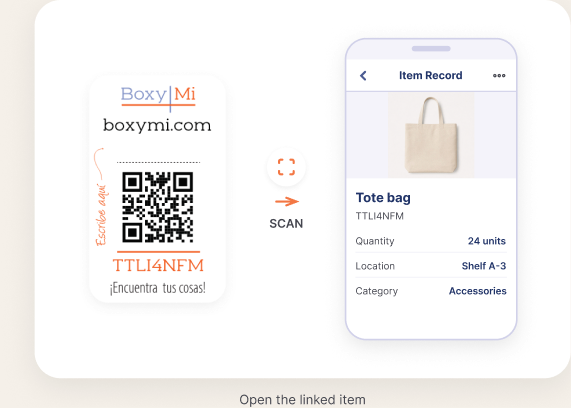
Connect it once. Find it with a scan.
Use an existing product barcode or attach a QR label to connect your physical items with their information in Boxymi.
01
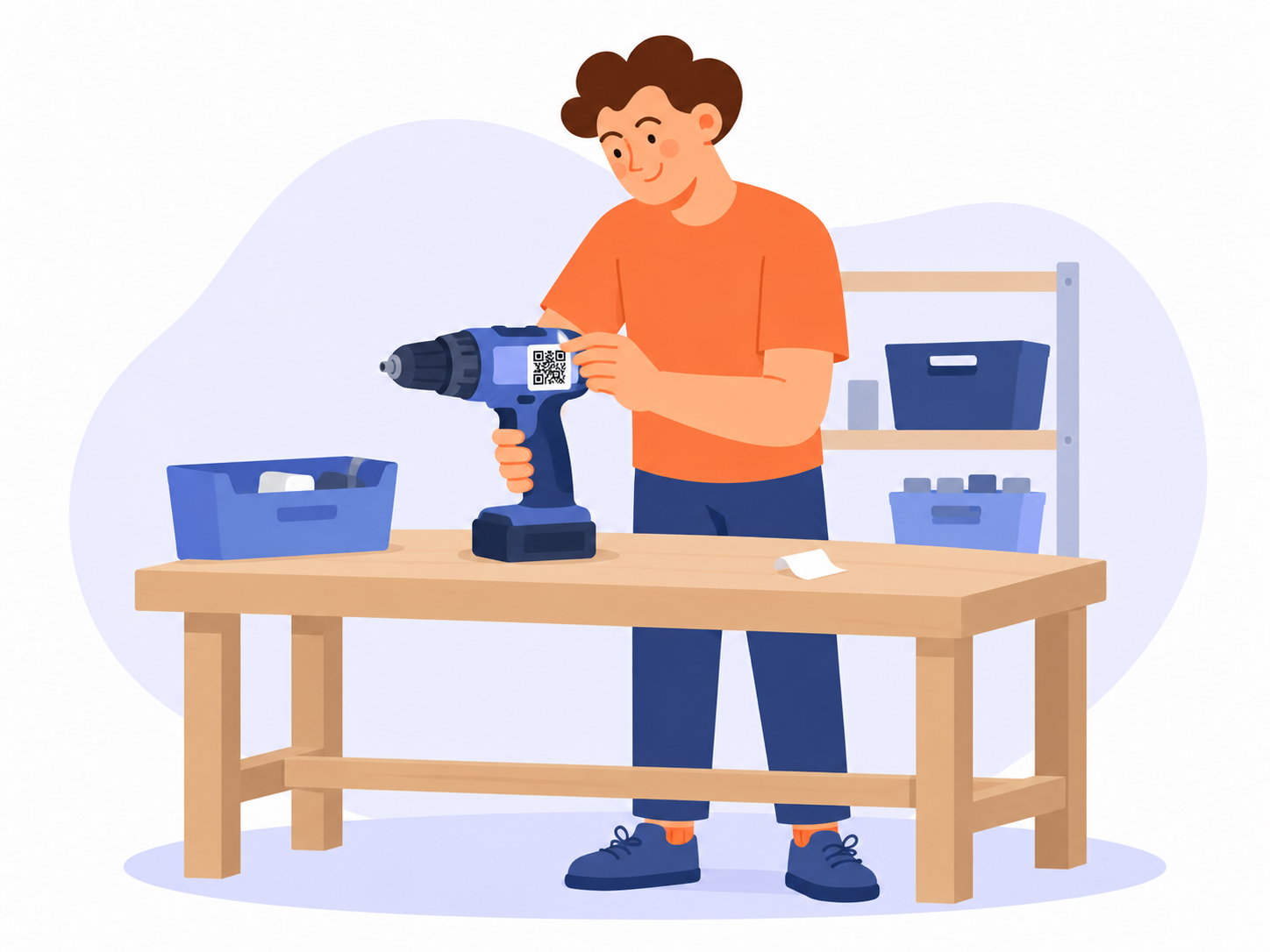
Use a barcode or QR label
Use the barcode already on your item, or attach a QR label to a clean, flat surface.
02
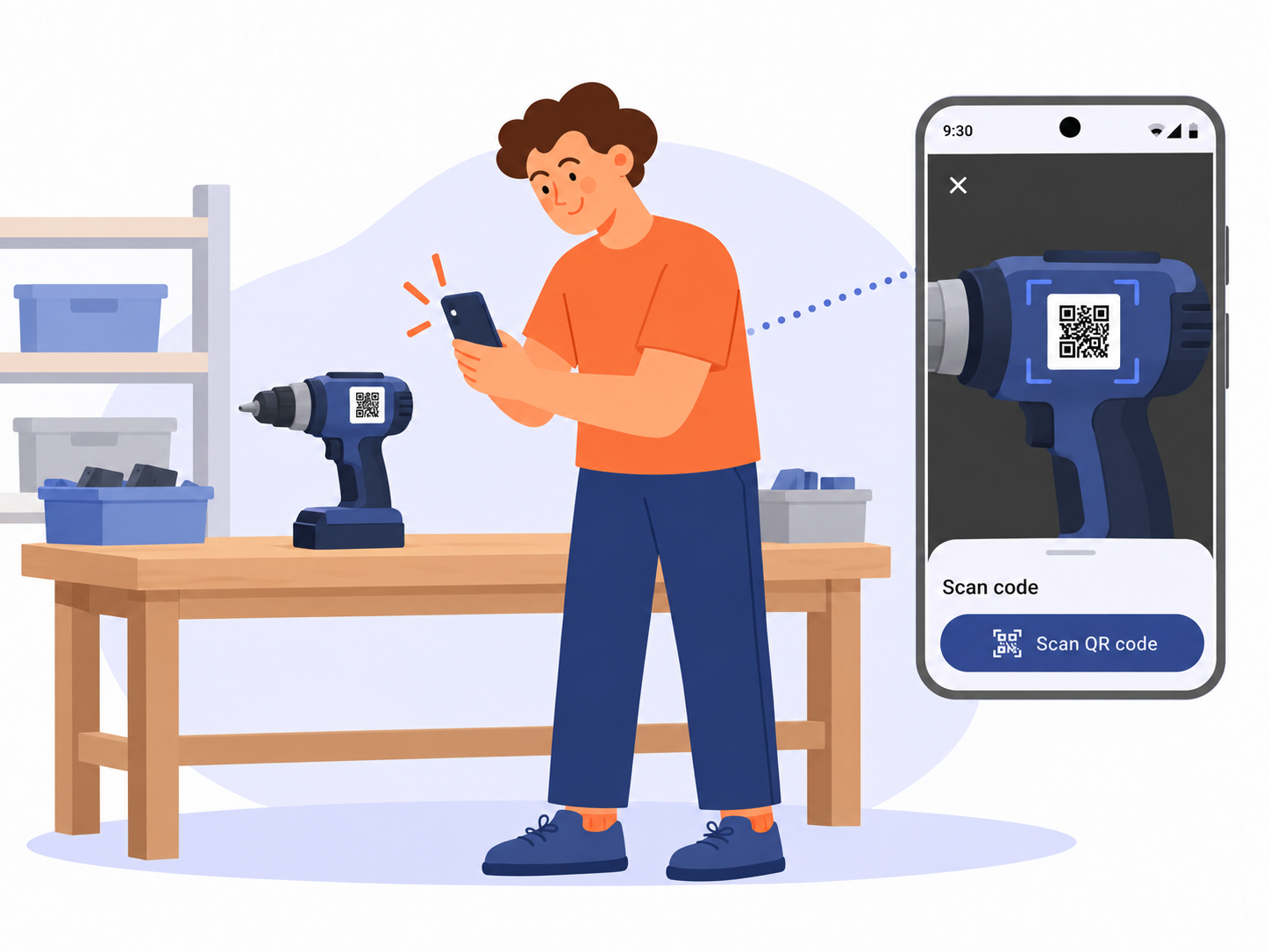
Describe the item
Scan the barcode or QR code and associate it with an item record. Add a name, photos, a description and a location.
03
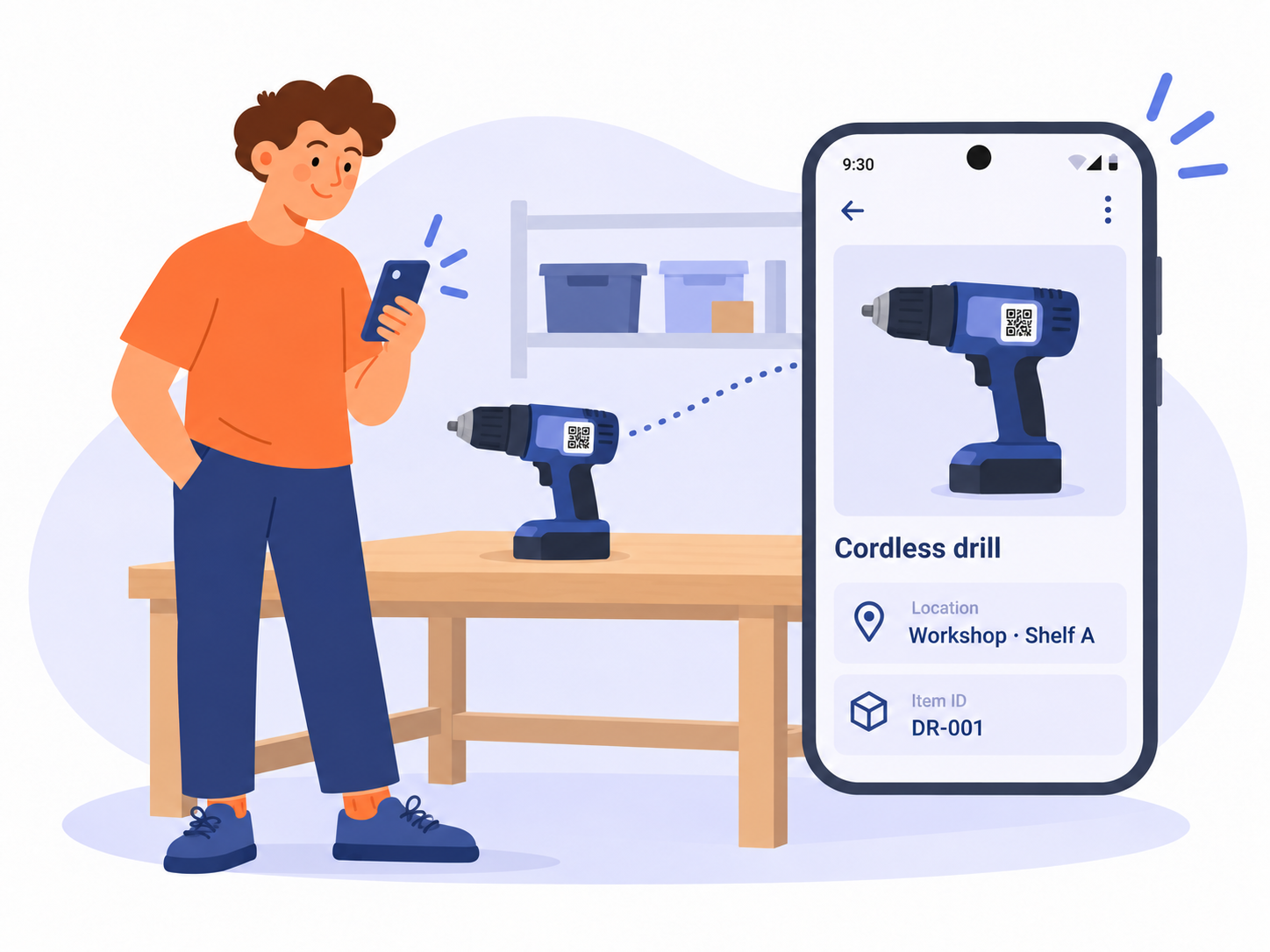
Scan to open its record
Scan the code again to view the associated item’s details and location.
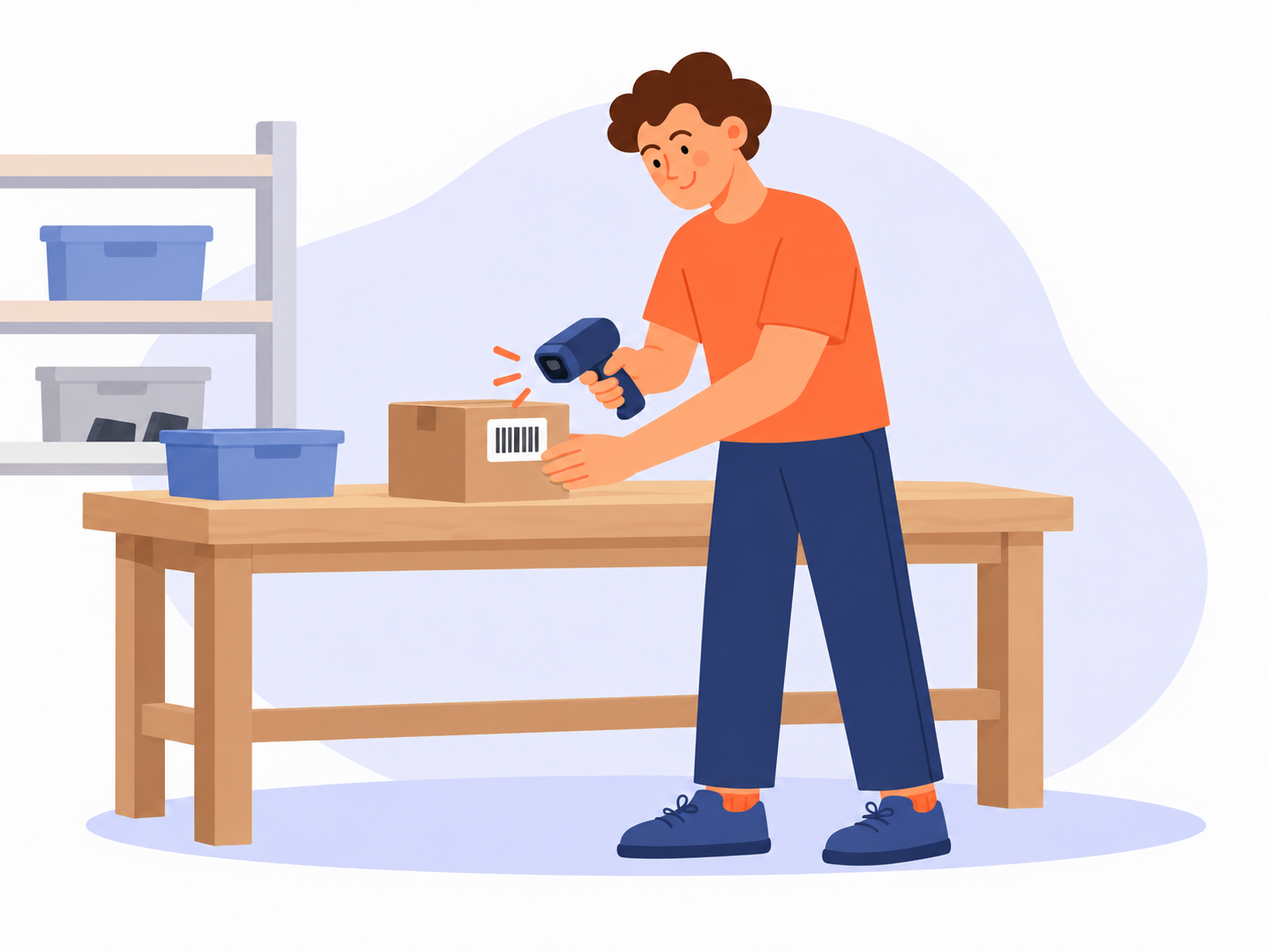
HANDHELD SCANNERS
Prefer a handheld scanner?
Use a compatible barcode or QR scanner to enter an item’s code in Boxymi. A practical option when you’re working through items at a desk, counter or workbench.
Choose a scanner that supports your codes and works with your device. Reading QR codes requires a 2D scanner.
BOXYMI SMART STORAGE LABELS
Need QR labels?
Ready-made labels for your boxes, containers and stored belongings. Organise your space and make your next move easier.
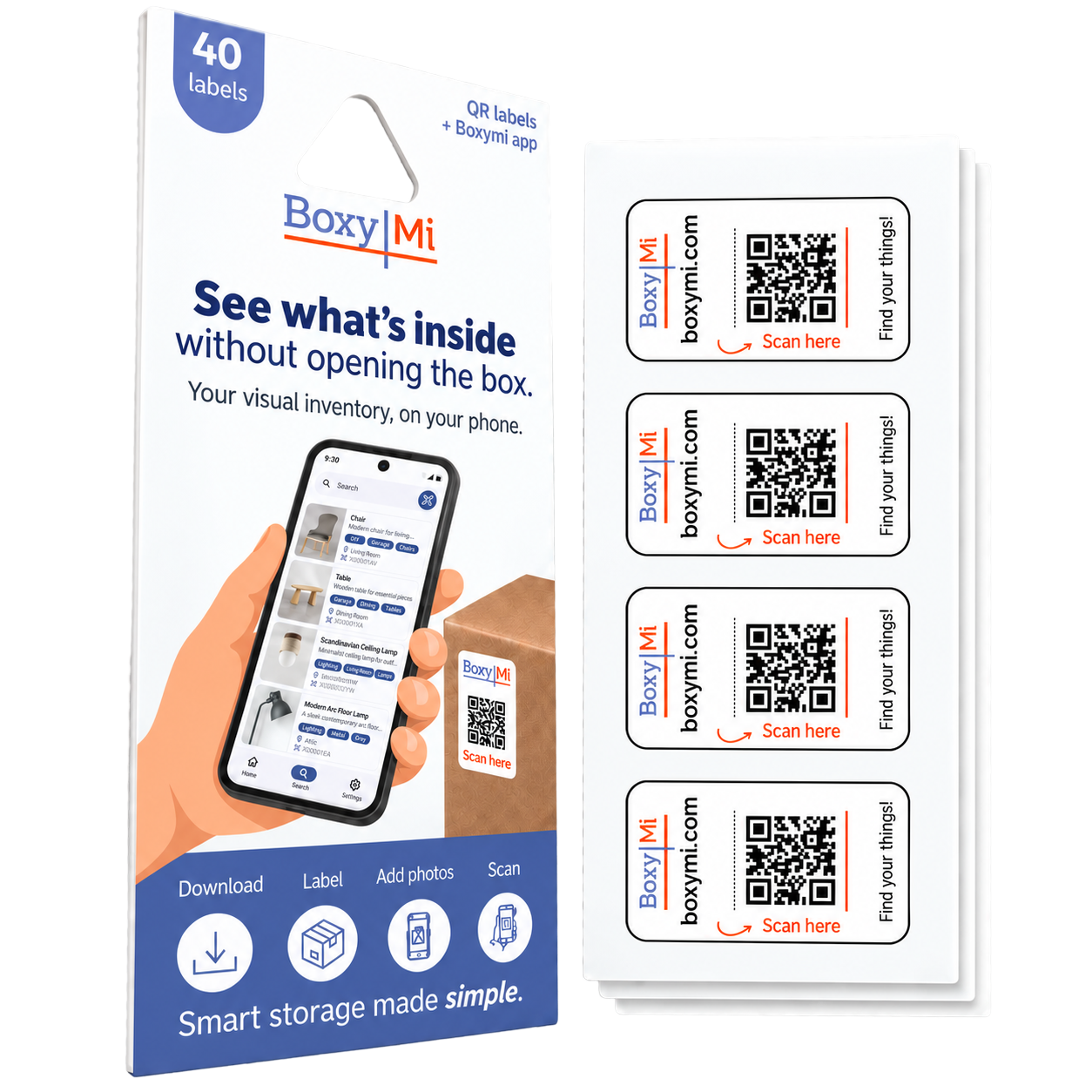

Laminated and suitable for outdoor use
Packs of 20, 40, 80 or 160 labels
Works with Boxymi on iOS and Android
One label purchase unlocks the Free plan, within its included limits.
Your barcode and
QR label questions,
answered
Can I use an existing barcode?
Yes. Scan the barcode already on a product and connect it to an item record in Boxymi. Scan it again whenever you need to open that record.
What information can I link to a code?
You can connect a code to an item record with its name, photos, description and location, so the information stays easy to find.
Do I need to buy Boxymi QR labels?
No. You can use an existing product barcode. Boxymi QR labels are available when you want ready-made labels for boxes, containers or other items. One label purchase also unlocks the Free plan within its included limits.
Can I use a handheld scanner?
Yes. Use a compatible barcode or QR scanner to enter an item’s code in Boxymi. Reading QR codes requires a 2D scanner.
Are Boxymi QR labels suitable for outdoor use?
Yes. Boxymi Smart Storage labels are laminated and suitable for outdoor use.
How do I get started with the Boxymi mobile app?
Find Boxymi in the App Store or Google Play, or use the download links in the footer. Install the app, sign in to your account and open your workspace. Attach a label, scan it and connect it to an item record with a name, photos, a description and a location.
Can I find an item without scanning its label?
Yes. Search for the item by name or code and use location or category filters to narrow the results. Add descriptive names and details when you create your records so boxes and their contents are easier to find later.
Can I use Boxymi for moving, storage, home organisation or a small business?
Yes. Label moving boxes and record their contents and destination rooms; organise stored belongings by category and location; group household items by use or season; or track business stock and update quantities as items move. Photos and clear descriptions help you find what you need without opening every box.
What is printed on a Boxymi QR label?
Each label has a QR code and an alphanumeric code, plus space for a short written note. Keep any writing clear of the QR code so it remains easy to scan. Use the code to connect the label to an item record in Boxymi.
Does scanning my label let anyone see my inventory?
Scanning a label does not grant access to your workspace. Access to item records depends on the signed-in account and its workspace permissions. If you share a workspace with a team, check membership and permissions with the workspace owner.
Ready to connect your items?
Keep your item details together in Boxymi, then find them with a scan.